 Ds Times
Few things are more frustrating than tapping the Get button in the App Store and watching absolutely nothing happen.
Maybe the download circle spins forever. Maybe the app stays stuck on “Waiting.” Sometimes the button turns gray and refuses to respond. Other times, the download starts and then suddenly stops without explanation.
It often happens at the worst possible moment. You need a banking app before making a payment. You want a navigation app before leaving home. Or perhaps your child is eagerly waiting for a new game that simply won’t install.
The good news is that most iPhone app download problems aren’t serious. In many cases, the fix takes only a few minutes once you know where to look.
If apps aren’t downloading on your iPhone, there’s usually a specific reason behind it. The challenge is finding that reason.
Table of Contents
- Why Apps Are Not Downloading on iPhone
- Check Your Internet Connection First
- Make Sure the App Store Is Working
- Verify Available Storage Space
- Check Your Apple ID
- Look for Download Restrictions
- Pause and Restart the Download
- Restart Your iPhone
- Update iOS
- Check Payment and Billing Information
- Turn Off Low Data and Low Power Modes
- Reset Network Settings
- When Apps Stay Stuck on Waiting
- What to Do if Nothing Works
- Final Thoughts
Why Apps Are Not Downloading on iPhone
When an app refuses to download, people often assume the App Store is broken.
That’s rarely the case.
Usually, the problem comes from one of several common issues:
- Weak internet connection
- Insufficient storage
- Apple ID problems
- Payment verification issues
- Software glitches
- App Store server problems
- Device restrictions
The trick is working through these possibilities one by one instead of randomly changing settings.
A little patience usually saves a lot of frustration.
Check Your Internet Connection First
It sounds obvious, but internet problems cause more download failures than almost anything else.
You might see full Wi-Fi bars and assume everything is fine. Yet the connection itself could be unstable.
Try opening Safari and loading a few websites.
If pages load slowly or not at all, your internet connection is likely the issue.
Sometimes switching between Wi-Fi and mobile data solves the problem immediately.
I’ve seen situations where a home Wi-Fi network appeared connected but couldn’t actually reach Apple’s servers. Turning Wi-Fi off and using cellular data allowed downloads to begin within seconds.
Here’s the thing: app downloads require a stable connection, not just a connected one.
Make Sure the App Store Is Working
Occasionally, the issue isn’t on your end.
Apple’s services can experience temporary outages.
If App Store servers are having problems, downloads may fail regardless of what you do.
You can check Apple’s System Status page through a web browser. If the App Store shows a service interruption, the best solution is simply waiting.
Fortunately, these outages don’t happen often and are usually resolved quickly.
Verify Available Storage Space
An iPhone can’t install apps if there’s no room left.
Many users forget to check storage because the phone still seems to work normally.
Go to:
Settings > General > iPhone Storage
Look at the available space.
Even if an app itself is only 200 MB, iOS often needs extra room for downloading, unpacking, and installing it properly.
Imagine trying to move furniture into a room that’s already packed wall-to-wall. The furniture may fit eventually, but you still need space to maneuver.
The same idea applies to app installations.
Deleting old screenshots, unused apps, or large videos can quickly free enough storage to solve the problem.
Check Your Apple ID
App downloads depend heavily on your Apple ID being properly connected.
Sometimes users get signed out without realizing it.
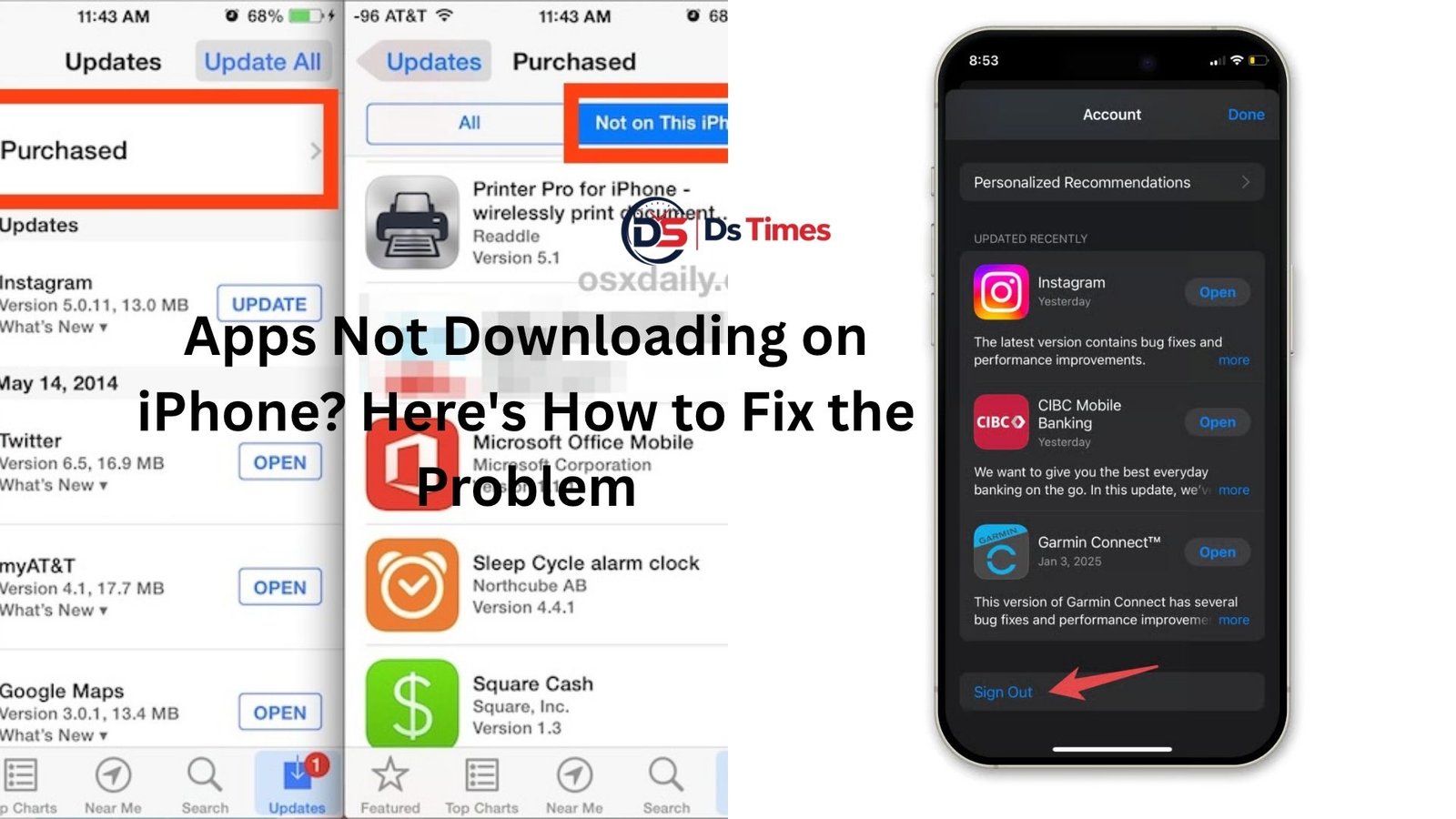
Open the App Store and tap your profile picture.
Verify that you’re signed in with the correct account.
If something looks unusual, sign out and sign back in.
A fresh login can often clear authentication glitches that prevent downloads from starting.
This isn’t the first thing I would try, but it’s definitely worth checking if basic fixes haven’t worked.
Look for Download Restrictions
Parents often use Screen Time controls to limit app downloads on family devices.
Sometimes those restrictions remain active long after they were originally set.
Go to:
Settings > Screen Time > Content & Privacy Restrictions
Review any restrictions related to app installation.
You may discover that downloads have been disabled entirely.
This happens more often than people expect, especially on shared family devices.
Pause and Restart the Download
A stuck download sometimes needs a simple nudge.
Press and hold the app icon on your Home Screen.
If available, pause the download and then resume it.
Alternatively, delete the stalled app and download it again from the App Store.
Think of it as restarting a frozen computer program.
Minor download glitches often disappear after a fresh attempt.
Restart Your iPhone
People joke about turning devices off and on again.
There’s a reason that advice never goes away.
Restarting clears temporary software issues that can interfere with downloads.
If your iPhone has been running for days or weeks without a restart, background processes may occasionally become stuck.
A quick reboot refreshes everything.
Turn your iPhone off completely, wait about 30 seconds, then power it back on.
It’s simple.
And surprisingly effective.
Update iOS
Running outdated software can create compatibility issues.
New apps are often optimized for newer iOS versions.
Developers may eventually stop supporting older releases altogether.
Check for updates by going to:
Settings > General > Software Update
If an update is available, install it.
Beyond download fixes, software updates also improve security, performance, and stability.
Many users delay updates for months. Then they discover multiple strange problems disappear immediately after updating.
That’s not always the solution, but it’s certainly worth considering.
Check Payment and Billing Information
This one catches people off guard.
Even free apps may fail to download if Apple detects an issue with your payment information.
Perhaps a card expired.
Maybe a billing address changed.
Or there’s an unresolved payment from a previous purchase.
Open:
Settings > Your Name > Payment & Shipping
Review your payment methods.
If Apple requires verification, complete any requested updates.
I’ve seen users spend hours troubleshooting downloads only to discover the problem was an expired credit card attached to their account.
Turn Off Low Data and Low Power Modes
iPhones include features designed to conserve battery life and reduce data usage.
Useful? Absolutely.
But sometimes these settings interfere with downloads.
Low Power Mode can limit background activities.
Low Data Mode can restrict network operations.
Try temporarily disabling both settings and then downloading the app again.
You can find them under:
- Settings > Battery
- Settings > Cellular or Wi-Fi
Once the download finishes, you can enable them again if needed.
Reset Network Settings
If internet-related fixes haven’t worked, network settings may be corrupted.
Resetting them can resolve persistent connectivity issues.
Go to:
Settings > General > Transfer or Reset iPhone > Reset > Reset Network Settings
Keep in mind that this removes saved Wi-Fi passwords and network preferences.
You’ll need to reconnect afterward.
For many users, though, it’s an effective solution when nothing else seems to work.
When Apps Stay Stuck on Waiting
The dreaded “Waiting…” message deserves its own discussion.
This issue usually points to one of four things:
- Poor internet connection
- Limited storage
- App Store authentication problems
- Temporary software glitches
Let’s be honest.
Seeing an app stuck on Waiting for hours can be incredibly annoying.
A practical approach is:
- Check internet connectivity.
- Restart the download.
- Restart the phone.
- Verify storage space.
Most Waiting issues disappear somewhere along that sequence.
What to Do if Nothing Works
Sometimes you’ve tried every common fix and downloads still refuse to cooperate.
At that point, a few deeper options remain.
Sign out of your Apple ID and sign back in.
Reset all settings without erasing personal data.
Contact Apple Support if the issue appears account-related.
You can also test whether the problem affects all apps or only one specific app.
If only a single app won’t download, the issue may be tied to compatibility requirements or App Store availability in your region.
If every app fails, the problem is usually device-wide or account-related.
Pay attention to error messages as well.
Those small warnings often contain clues that point directly to the real cause.
Final Thoughts
When apps are not downloading on iPhone, the problem usually feels bigger than it really is.
Most cases come down to a handful of common issues: weak internet, low storage, account verification problems, outdated software, or temporary glitches.
Start with the simple fixes first. Check your connection. Confirm available storage. Restart the device. Verify your Apple ID. Then move on to more advanced troubleshooting if needed.
More often than not, one of those steps gets things working again.
And when the download finally starts after hours of frustration, it’s a surprisingly satisfying moment. Sometimes the smallest technology victories feel like the biggest ones.